180 steps in 20 chapters, in the order a counter uses them. Pictures are from a real BillEase window. That capture was a pharmacy, so restaurant and hotel chapters are written in full and not pictured.
Chapter 1
Install, register, and the 10-day trial
The program is a Windows desktop application. The trial is ten days from registration on that computer. Backup and restore do not run until a licence is loaded.
BillEase is billing software for a Windows PC in the shop. It is not a website you log into from a browser, and it is not an app on a phone. Download BillEase.exe and start it. Windows 10 or Windows 11, 64-bit, is what the build is made for. The .NET runtime is already inside the program, so you do not install .NET separately.
The first registration is the firm that prints on the tax invoice: name, address, city, state, state code, PIN, phone and email. A GSTIN is needed when you want pakka GST invoices. A pharmacy also types its drug licence numbers. Other businesses leave those boxes blank, and the program hides them when the business type does not use them.
The business type is the important choice. It selects the template: pharmacy, grocery, pantry, electronics, general store, clothing, restaurant, hotel, wholesale, service or mall. You can change it later under Settings. Sample data is optional. Electronics, general and wholesale each load their own catalogue. Grocery and pantry share the grocery catalogue.
The ten-day trial starts when registration finishes. Closing the program does not restart it. Deleting the database does not restart it, because the trial is stored in more than one place. During those ten days you can bill, purchase and keep accounts. Backup, restore and automatic backup do not run until a licence file is loaded. When the ten days end, only the licence screen opens.
Steps
1. Download BillEase.exe and start it on a Windows 10 or Windows 11 PC, 64-bit. The .NET runtime is inside the program.
2. The first screen asks you to register the firm. This is the shop the bills are printed for, not a website account.
3. Type the firm name, address, city, state, state code, PIN, phone and email as they should appear on a tax invoice.
4. If the firm has a GSTIN, type it. A kacha (estimate) bill does not need it. A pakka GST invoice uses it.
5. A pharmacy types the drug licence numbers. Other businesses can leave those boxes blank. The boxes hide when the business type does not use them.
6. Choose the business type. This picks the template: pharmacy, grocery, pantry, electronics, general, clothing, restaurant, hotel, wholesale, service or mall. You can change it later in Settings.
7. Tick sample data only if you want a practice catalogue. Electronics, general and wholesale each get their own catalogue. Grocery and pantry share the grocery catalogue.
8. Create the administrator: full name, username and password. The password is confirmed in a box with an eye so you can check it.
9. Finish registration. The ten-day trial starts now. Closing the program and opening it again does not start a new trial. Deleting the database does not start a new trial.
10. During these ten days you can bill, purchase and keep accounts. Backup, restore and the automatic backup do nothing until a licence file is loaded.
11. When the ten days end, the program opens only the licence screen until a valid licence for this PC is loaded.
BillEase guide · Chapter 1 of 20
Chapter 2
Sign in, the password eye, and moving around
Keys below are the ones the program lists under Settings, Shortcuts.
After registration you sign in with the administrator username and password. Every password box has an eye. Click it to read what you typed, then click it again to hide the characters. That is there so a mistyped password can be checked before you save it.
The left menu shows only what this login is allowed to open. A billing login makes sales bills and can use restaurant or hotel screens when those modules are on. It does not open purchase, accounts or GST. An accountant opens purchase, vouchers, returns and reports. An administrator opens everything, including users, the bill designer and companies.
The keyboard follows the list under Settings, Shortcuts. F2 is sales billing, F3 purchase, F4 vouchers, F5 saved sales bills, F6 products, F7 stock, F8 customers and suppliers, F11 books and reports, F12 GSTR-1 and GSTR-3B. Ctrl+Q opens quotations. Ctrl+4 opens the bill layout, and only an administrator can use that screen. Ctrl+L signs out.
Steps
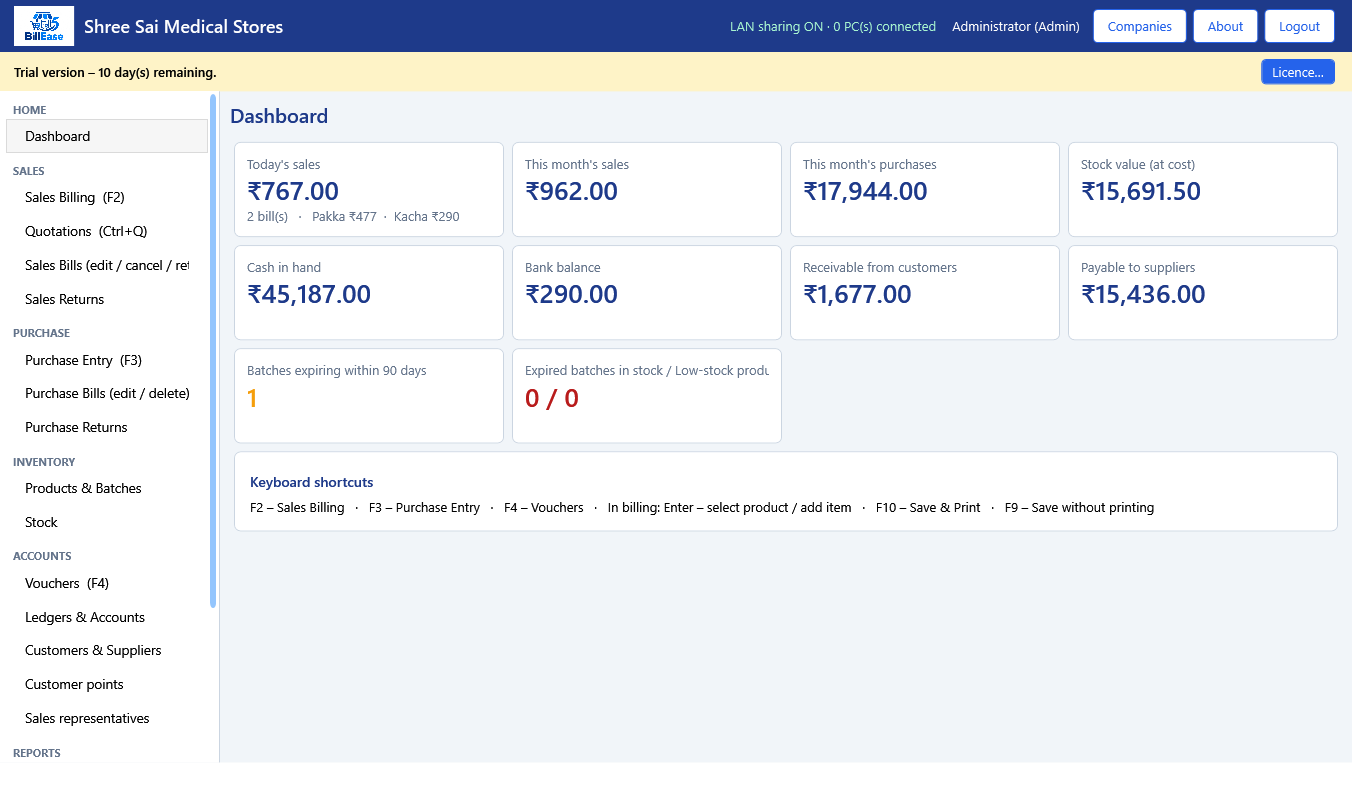
12. Sign in with the username and password. Click the eye on the password box to read what you typed, then click it again to hide it.Dashboard, captured from BillEase.
13. The left menu shows only the groups this login may open. A billing login does not get purchase, accounts or GST.
14. Press F2 for sales billing, F3 for purchase, F4 for vouchers, F5 for saved sales bills, F6 for products, F7 for stock, F8 for customers and suppliers.
15. Press F11 for books and reports, and F12 for GSTR-1 and GSTR-3B.
16. Press Ctrl+D for the dashboard, Ctrl+1 for ledgers, Ctrl+2 for settings, Ctrl+4 for the bill layout (administrator), Ctrl+Q for quotations.
17. Press Ctrl+L to sign out. Esc closes a window that has a Cancel button.
18. The top bar shows the firm, and the branch when one is open. About opens the product name and version.
19. An administrator sees Companies. Other PCs on the network see Switch company instead.
BillEase guide · Chapter 2 of 20
Chapter 3
The firm, the business type, and modules
Settings, Company. Saving here updates the menu.
Settings, Company, is where the name, GSTIN and address on the printed bill are kept. Changing the business type does not wipe fields that become hidden. They stay in the database, so switching back later still has them.
Two modules can be switched on. Restaurant adds tables, kitchen tickets and the kitchen display. Hotel adds rooms, bookings and the guest folio, and it also turns the restaurant screens on for room service. A mall starts with the restaurant module for a food court. Billing, stock, purchase, accounts, GST, customers and reports stay on for every business. They are not optional modules.
Sale rates either already include GST, which is usual at a retail counter, or they exclude GST, which is usual for a wholesaler so tax is added on the bill. The logo you load can print on bills and reports. Near-expiry days, 90 by default, feed the dashboard and the Near Expiry report.
Steps
20. Open Settings and stay on Company. Check the name, GSTIN and address that print on the bill.Settings, captured from BillEase.
21. Change the business type if the shop was registered as the wrong kind. Hidden fields are kept, so changing back does not wipe them.
22. Restaurant turns on tables, kitchen tickets and the kitchen display. Hotel turns on rooms and the folio, and also turns on the restaurant screens for room service.
23. A mall starts with the restaurant module for a food court. You can switch a module off. Billing, stock, purchase, accounts and GST stay on for every business.
24. Set whether sale rates already include GST. A wholesaler usually leaves this off, so GST is added on the bill. A retail counter usually includes GST in the rate.
25. The logo you load here can print on the bill and on reports. It is stored in the company database.
26. Near-expiry days (the default is 90) feeds the dashboard and the Near Expiry report.
27. Save settings. The menu rebuilds. If you are a client PC, company edits are done on the main PC.
BillEase guide · Chapter 3 of 20
Chapter 4
Users and roles
Settings is not the user list. Users is its own screen, and only an administrator opens it.
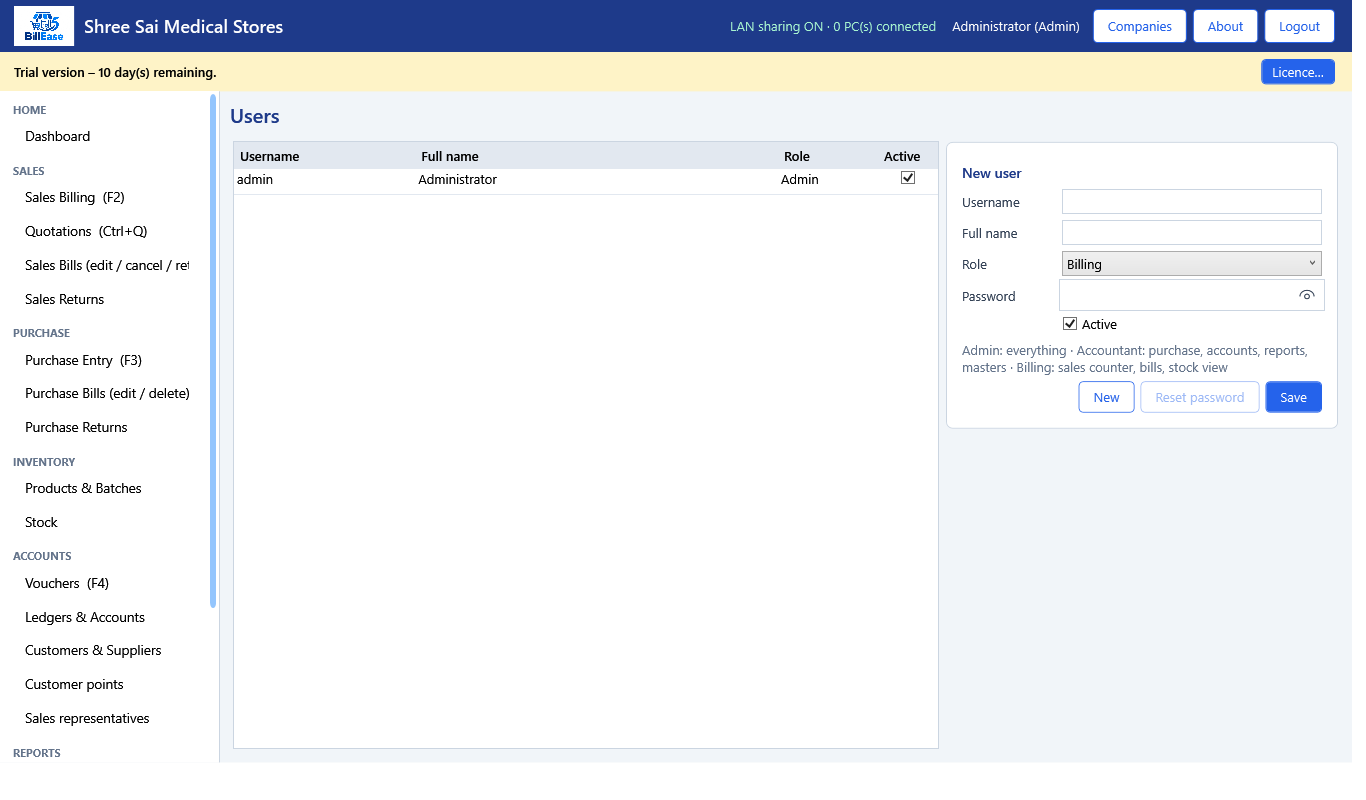
Users is its own screen. Only an administrator opens it. The first user is the administrator created at registration. Each later person gets a full name, a username, a password and a role.
Administrator can do everything. Accountant can purchase, keep accounts, make returns and open reports. Billing can make sales bills and work the restaurant or hotel screens. A billing login cannot edit or cancel a saved bill. Switching a user off stops that login. It does not delete the bills they already saved.
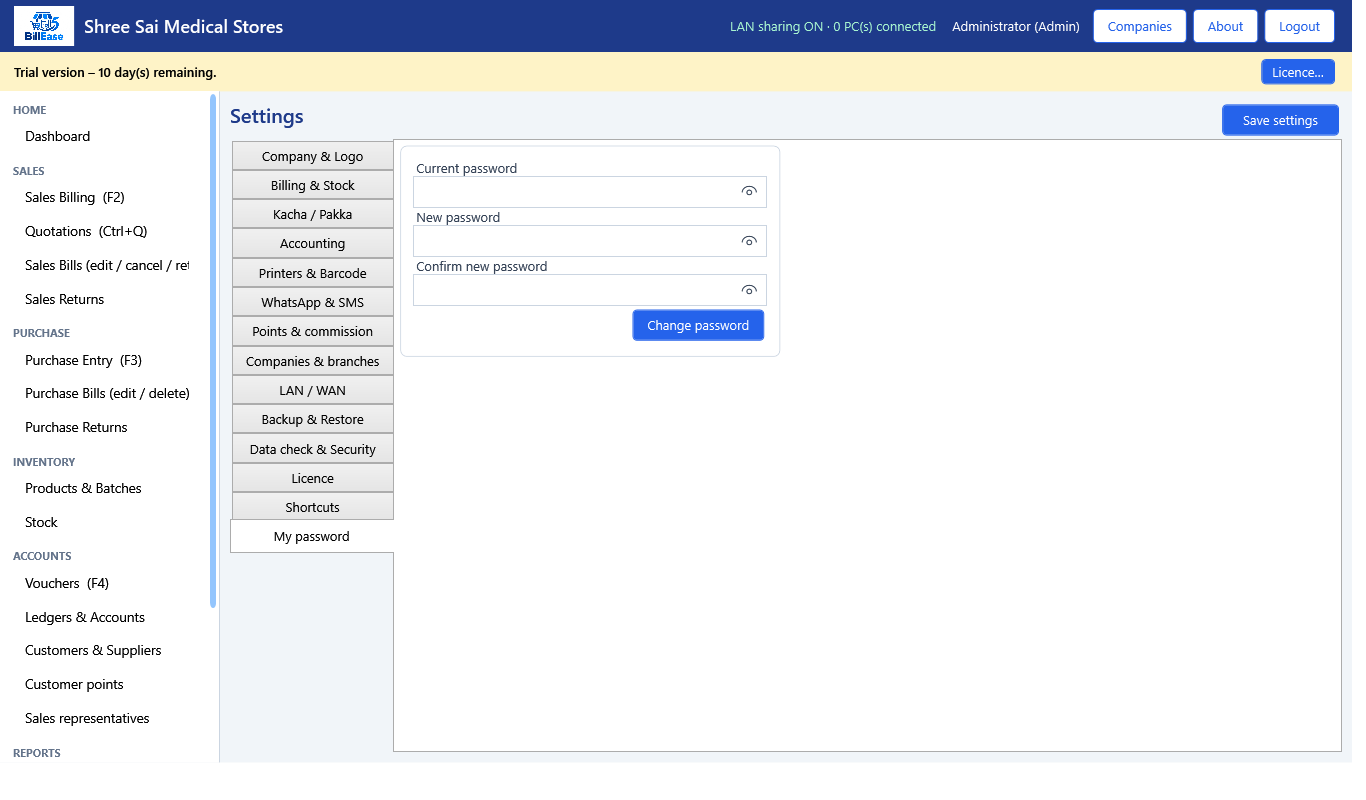
To change your own password, open Settings, My password. Type the current password, the new password and the confirmation. The eye is on each of those boxes.
Steps
28. Open Users. The administrator already exists from registration.Users, captured from BillEase.
29. Add a person with a full name, a username and a password. Use the eye if you need to read the password back.
30. Choose a role. Administrator can do everything. Accountant can purchase, accounts, returns and reports. Billing can make sales bills and use the restaurant or hotel screens.
31. A billing login cannot edit or cancel a saved bill, and cannot open purchase or GST.
32. To change your own password, open Settings, My password, and type the current password, the new one, and the confirmation.
33. Switching off a user stops that login. It does not delete the bills they made.
BillEase guide · Chapter 4 of 20
Chapter 5
Items, batches, barcode and opening stock
Products and batches. What you see depends on the business type.
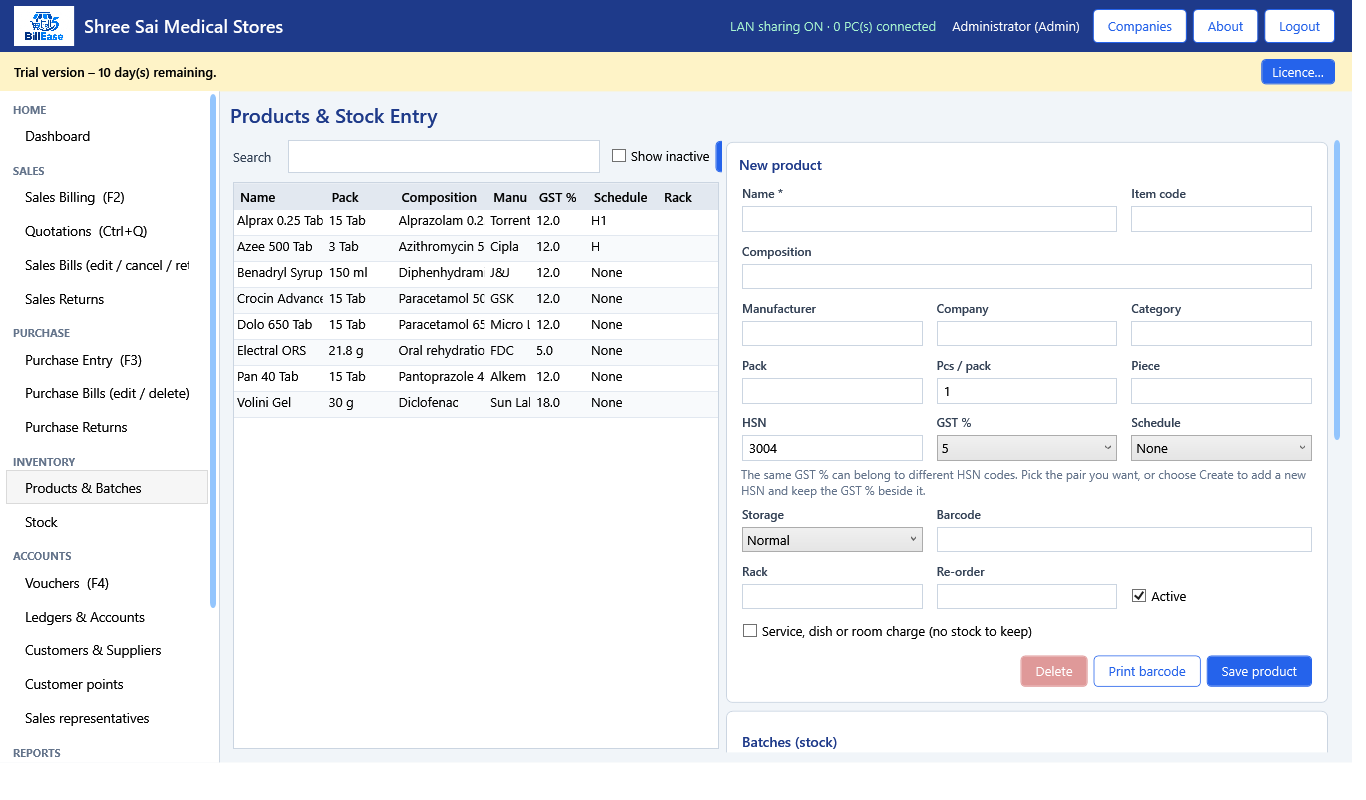
Products and batches are the catalogue the bill searches. Press F6. What you type depends on the business. A pharmacy types composition, schedule and manufacturer. Other shops type the brand. Every item needs a name, a pack, an HSN and a GST rate. The rate has to be 0, 5, 12, 18, 28 or 40.
Category is what the department report groups by. A mall should name categories such as Staples or Footwear so the day splits by department. Re-order level feeds the low-stock report. Pieces per pack is 1 when you sell only whole packs. If a strip has 10 tablets and you sell tablets, type 10.
A service has no stock: a dish, labour, a room charge, an installation. It can still sit on a GST bill. Goods take their sale rate from a batch. A batch needs a batch or serial number, expiry or warranty, MRP, purchase rate and sale rate. Sale rate cannot be above MRP. A pharmacy must type an expiry. Other shops may leave it blank. An electronics warranty date is stored and does not block the sale after that date.
Clothing uses size and colour on the batch. Each size is its own stock row and can have its own barcode. Opening stock is its own stock line. You do not invent a quantity by editing the item alone. Barcode labels are Code 128, printed from the batches you select. Label size is set in Settings.
Steps
34. Open Products. Press F6 if you are on another screen.Products & Batches, captured from BillEase.
35. Click New. Type the item name. A pharmacy also types composition, schedule and manufacturer. Other shops type the brand.
36. Type the pack, the HSN and the GST rate. The GST rate has to be one of 0, 5, 12, 18, 28 or 40.
37. Type a category. The department report groups the day by this category. A mall should use names such as Staples or Footwear.
38. Set the re-order level. The Low Stock report uses it.
39. Pieces per pack is 1 when you sell only whole packs. If a strip has 10 tablets and you sell tablets, type 10.
40. Tick the item as a service when it has no stock: a dish, labour, a room charge, an installation. Services still appear on a GST bill.
41. A service can have a service rate. Goods take their sale rate from the batch.
42. Save the item, then add a batch: batch or serial number, expiry or warranty, MRP, purchase rate and sale rate.
43. A pharmacy must type an expiry. Other shops may leave it blank. An electronics warranty date is stored and does not block the sale.
44. Clothing uses size and colour on the batch. Each size is its own stock row, with its own barcode if you type one.
45. Sale rate cannot be above MRP. All three of purchase rate, MRP and sale rate are required on a purchase and on a batch you receive.
46. Opening stock is entered as its own stock line, not by typing a quantity on the item alone.
47. Print barcode labels from the stock screen for the batches you select. The label size is set under Settings, on the barcode label fields.
BillEase guide · Chapter 5 of 20
Chapter 6
Customers and suppliers
One party list. The type decides which bills can use them.
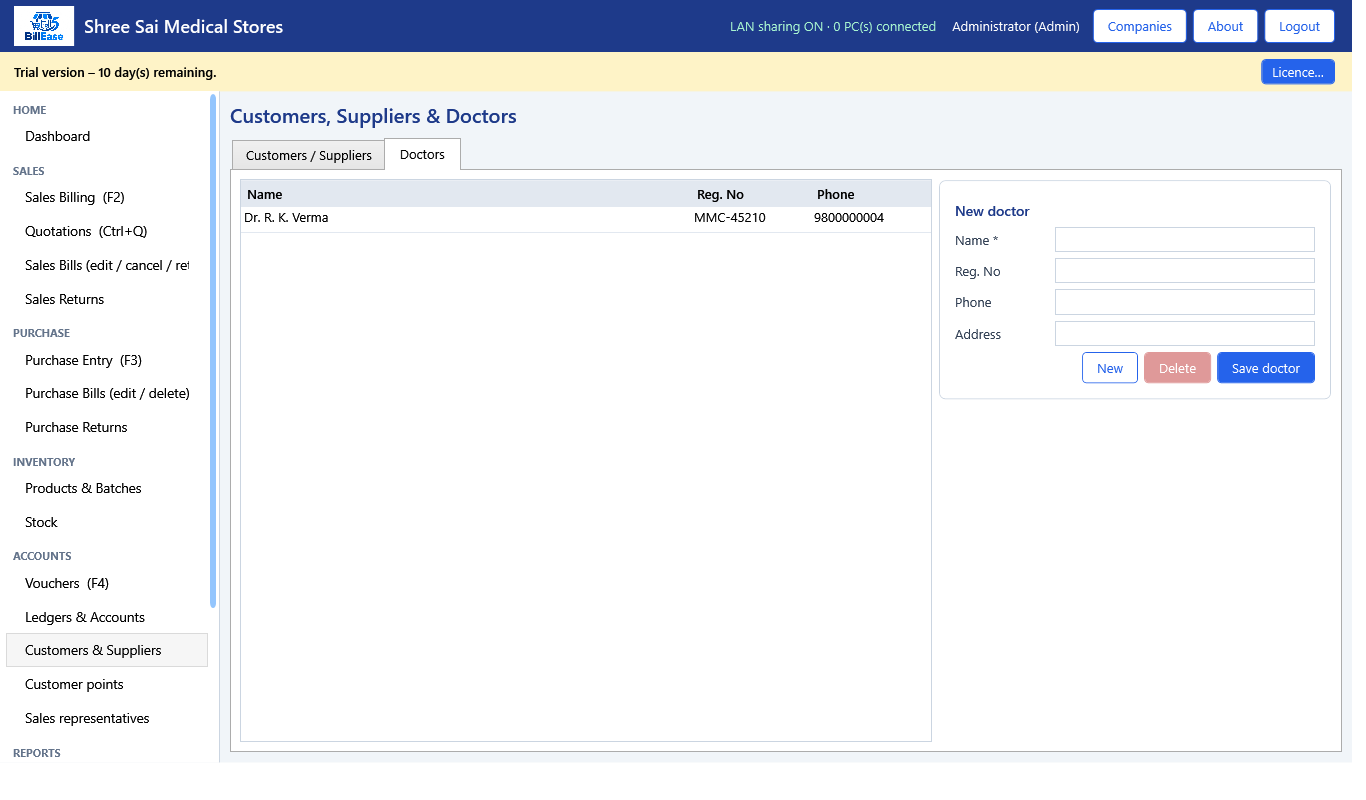
Customers and suppliers are one party list, opened with F8. The type decides where the party can be used. A customer can be selected on a sales bill. A supplier can be selected on a purchase. A party can be both.
Type the name, phone, address, state code and GSTIN when they are registered. The state code decides CGST plus SGST, or IGST, on a pakka bill. A credit sale can be saved only when a customer party is selected. A walk-in cash bill can leave the party empty and still type a name on the bill.
Opening balance is signed. Positive means they owe you. Negative means you owe them. Later outstanding uses the bills and the receipts as well as this opening figure. The party ledger is the place to read every line.
Steps
48. Open Customers & Suppliers (F8).Customers & Suppliers, captured from BillEase.
49. Add a customer with name, phone, address, state code and GSTIN if they are registered.
50. A credit sale can be saved only when a customer party is selected. A walk-in cash bill can leave the party empty and still type a name.
51. Add a supplier the same way and set the type to Supplier. A party can be both.
52. Opening balance is signed: positive is money they owe you, negative is money you owe them.
53. The outstanding report later uses the bills and the receipts, not only this opening figure.
BillEase guide · Chapter 6 of 20
Chapter 7
A sales bill
Sales billing. Enter moves down the form. On this screen, Enter adds the item instead.
Sales billing is F2. This is the screen a counter lives on. Choose Pakka for a GST invoice or Kacha for an estimate. Kacha bills are left out of GSTR-1, GSTR-3B and the HSN summary. Kacha can be switched off in Settings.
Search the item by name, composition or barcode. The batch offered first is the one that expires first, when the template tracks expiry. Quantity is in pieces. Discount percent cannot pass the maximum set in Settings. The rate can be changed only when Settings allow it. A rate above MRP is refused when the selling rate includes GST.
A pharmacy bill for schedule H1, X or narcotic asks for the doctor and the patient. Those lines also appear on the schedule register. Payment is cash, card, UPI or credit. Credit needs a customer. Cash posts to the cash account. Card and UPI post to the bank account. One bill cannot be split across two payment modes.
A salesman or medical representative can be picked when commission is on. Commission is stored against the bill. It is not posted into the ledger. You pay it later with a payment voucher. Loyalty points, when switched on, can be redeemed up to the percent set in Settings, and the customer has to be a party.
F9 saves without printing. F10 saves and prints. Pakka numbers start with INV. Kacha numbers start with EST. Then the financial year, then a running number. The prefixes can be changed in Settings and they cannot be the same. Alt+H holds the bill and starts the next customer when held bills are on. Alt+C clears the screen after you confirm. A bill already saved is not deleted by that key.
Steps
54. Open Sales Billing (F2).Sales Billing (F2), captured from BillEase.
55. Choose Pakka for a GST invoice or Kacha for an estimate. Kacha bills are left out of GSTR-1 and GSTR-3B. Kacha can be switched off in Settings.
56. Search the item by name, composition or barcode. Pick the row. The batch offered first is the one that expires first, when expiry is in use.
57. Type the quantity in pieces. Type a discount percent if you need one. The maximum discount is set in Settings.
58. Change the rate only if Settings allows rate changes. A rate above MRP is refused when the rate includes GST.
59. A pharmacy bill for schedule H1, X or narcotic asks for the doctor and the patient.
60. Pick cash, card, UPI or credit. Credit needs a customer. Card and UPI post to the bank account. Cash posts to cash.
61. If a salesman or MR is on, pick them. Commission is stored against the bill. It is not a ledger entry. You pay it later with a payment voucher.
62. Loyalty points, if switched on, can be redeemed up to the percent set in Settings. The customer has to be a party.
63. Press F9 to save without printing, or F10 to save and print.
64. The bill number is INV for pakka and EST for kacha, then the financial year, then a running number. You can change the prefixes in Settings. They cannot be the same.
65. Alt+H holds the bill and starts the next customer, when held bills are switched on. The held bill stays above the form.
66. Alt+C asks, then clears the items on screen. A bill already saved is not deleted.
67. A warning can appear if the rate is below cost. It does not block the save. Blocking expired stock is a pharmacy-style setting and applies only where the template tracks expiry.
BillEase guide · Chapter 7 of 20
Chapter 8
Find, edit, cancel or return a sale
Saved bills are a separate screen from the billing form.
Saved bills are a different screen from the billing form. Open Sales Bills with F5, set the dates, and filter pakka or kacha if you need to. Double-click a bill to preview or reprint it.
WhatsApp and SMS on that screen use the templates in Settings. They send only when you have switched the channel on and filled the API details. If those boxes are empty, the button does not send a message.
Edit opens the bill back on the sales screen. A cancelled bill cannot be edited. A bill that already has a sales return cannot be edited until that return is deleted. Cancel keeps the bill number, marks it cancelled, and reverses stock and the accounts entry. Delete removes the bill. Both ask for a reason, which is written to the audit log. Settings can forbid cancel, and can forbid edit and delete.
A sales return is for an accountant. Pick the bill, the lines and the quantity coming back, and how the money is refunded. A return of a pakka bill is what reaches the GST reports. A return of a kacha bill stays out of GST.
Steps
68. Open Sales Bills (F5). Set the dates and, if you want, pakka or kacha only.Sales Bills (edit / cancel / return), captured from BillEase.
69. Double-click a bill to preview or reprint it. WhatsApp and SMS on this screen use the templates in Settings, and only if you have switched those channels on and filled the API details.
70. Edit opens the bill on the sales screen. A cancelled bill cannot be edited. A bill that already has a sales return cannot be edited until that return is deleted.
71. Cancel keeps the bill number and marks it cancelled. Stock and the accounts entry are reversed. Settings can forbid cancel.
72. Delete removes the bill. Settings can forbid edit and delete. Both ask for a reason, which is written to the audit log.
73. Sales return (accountant) is for goods the customer brought back. Pick the bill, tick the lines and the quantity, and choose how the money is refunded.
74. A sales return of a pakka bill is what reaches the GST reports as a credit note. A return of a kacha bill stays out of GST.
BillEase guide · Chapter 8 of 20
Chapter 9
Quotations
A quotation is an offer. It does not move stock and it is not a GST invoice.
A quotation is an offer. Open it with Ctrl+Q. It does not reduce stock, it does not post accounts, and it is not a GST invoice. You can quote an item that is not in stock yet, as long as you type a rate. If you leave the rate blank, the program uses the current sale rate of a batch that exists.
Convert to bill is the moment stock moves. You choose cash, card, UPI or credit, and pakka or kacha. Batches are taken earliest-expiry first. If there is not enough stock, the quotation stays open and no bill is saved. Credit needs a customer on the quotation.
An expired quotation cannot be converted until you change the valid-until date and save it. A quotation that already became a bill cannot be billed again unless that bill is cancelled. The sales bill remarks include the quotation number. Print that bill the usual way. There is no separate quotation layout.
Steps
75. Open Quotations (Ctrl+Q).Quotations (Ctrl+Q), captured from BillEase.
76. Type the customer, or pick one, and the date the offer stands until. Add items. Leave the rate blank to use the current sale rate, or type the rate you promised.
77. You can quote an item that is not in stock yet, as long as you type a rate. Saving does not reduce stock.
78. Convert to bill asks for cash, card, UPI or credit, and pakka or kacha. Stock is taken at that moment, using the earliest-expiry batches.
79. If there is not enough stock, the quotation stays open and no bill is saved.
80. An expired quotation cannot be converted until you change the valid-until date and save it. A quotation already billed cannot be billed again unless that bill is cancelled.
81. The sales bill remarks name the quotation number. Print that bill the usual way. There is no separate quotation print layout.
BillEase guide · Chapter 9 of 20
Chapter 10
Purchases and purchase returns
Purchase is for an accountant or an administrator. A billing login does not open it, unless the counter-purchase setting is on while a sale is open.
Purchase is for an accountant or an administrator. A billing login does not open it, except for a counter purchase of one item while a sale is already open, and only when that setting is on.
Pick the supplier, type their invoice number, choose pakka or kacha, and choose cash, bank or credit. Each line needs the item, batch, expiry or warranty, quantity, free quantity if any, purchase rate, MRP and sale rate. Free quantity is stock you received without adding it to the taxable value of that line. Sale rate cannot exceed MRP.
Saving increases stock and posts the purchase account, input GST, and the supplier or the cash account. Pakka purchases are what the GST summary uses as input. Kacha purchases stay out of GST.
Purchase Bills is where you find a saved purchase, edit it, or delete it. A purchase that already has a return cannot be edited until the return is deleted. A purchase return sends goods back. Stock comes down by the quantity you return.
Steps
82. Open Purchase Entry (F3).Purchase Entry (F3), captured from BillEase.
83. Pick the supplier and type their invoice number. Choose pakka or kacha, and cash, bank or credit.
84. Add each line: item, batch, expiry or warranty, quantity, free quantity if any, purchase rate, MRP and sale rate.
85. Free quantity is stock you received without adding it to the taxable value of that line.
86. Save. Stock increases and the purchase account, input GST and the supplier or cash account are posted.
87. Open Purchase Bills to find a saved purchase, edit it, or delete it. A purchase that already has a return cannot be edited until the return is deleted.
88. Purchase return sends goods back to the supplier. Pick the purchase, the lines and the quantity. Stock comes down.
89. While a sales bill is open, a counter purchase can receive one item without leaving the sale, if that setting is on.
90. The purchase book and the input side of the GST summary use pakka purchases only.
BillEase guide · Chapter 10 of 20
Chapter 11
Stock
Stock is calculated from the movement list. The quantity on a batch is rebuilt from those movements.
Stock is not a number you type over the top of. It is rebuilt from the movement list: opening, purchase, sale, return, adjustment and transfer. The quantity on a batch follows those documents. Verify and repair, under Settings, checks that the quantity still matches the movements.
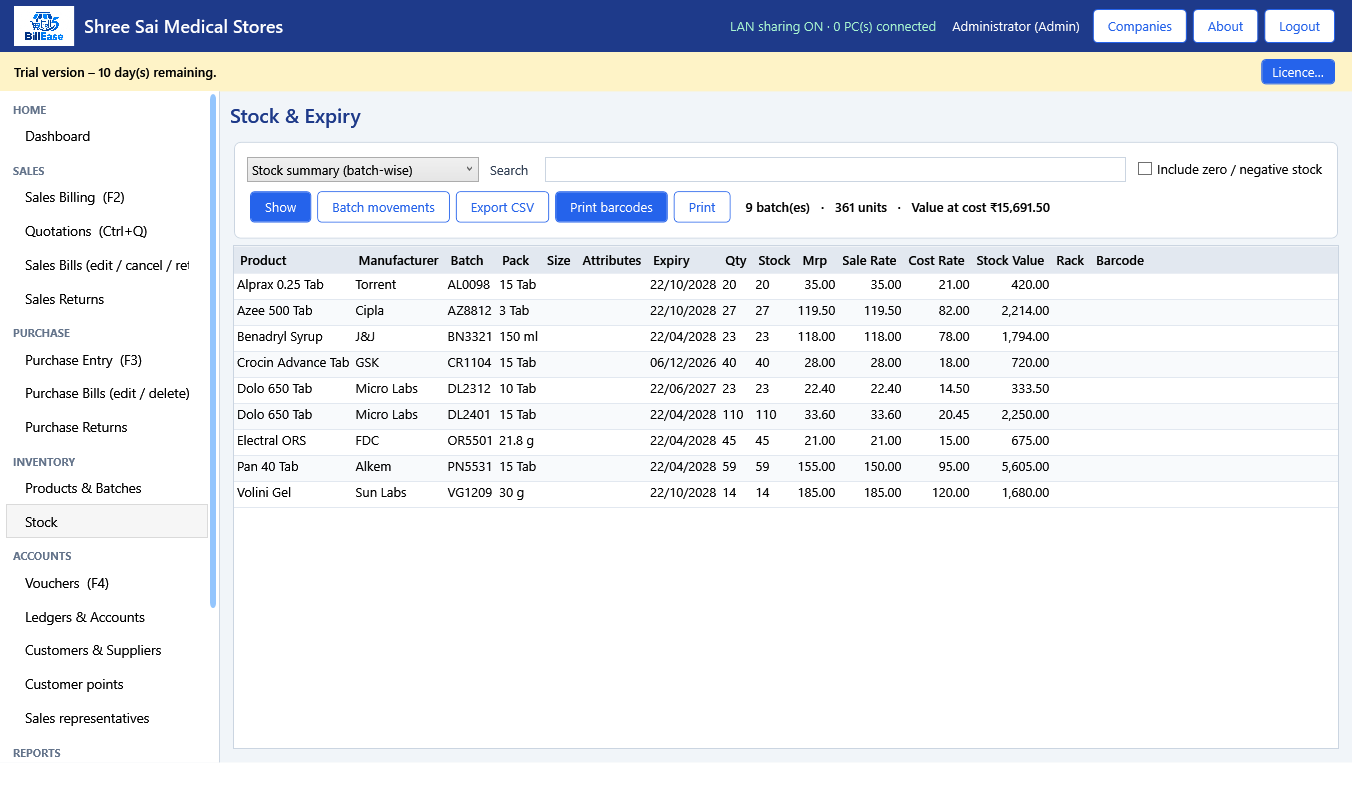
The stock screen, F7, searches by item, brand, batch, size or barcode. Services, dishes and room charges are not in this list, because they have no stock. Near Expiry and Expired are reports under Books. Expired stock can be blocked on a sale only when the template tracks expiry and the setting is on. An electronics warranty date does not block the sale.
A stock adjustment is a stock entry with a reason. It writes a movement. The stock ledger for one item shows opening, in, out and balance between two dates. Low stock uses the re-order level on the item.
Steps
91. Open Stock (F7). Search by item, brand, batch, size or barcode.Stock, captured from BillEase.
92. Batch-wise stock shows quantity, MRP, sale rate and cost. Services, dishes and room charges are not in this list.
93. Near Expiry and Expired are reports under Books. Expired stock can be blocked on a sale only when the template tracks expiry and the setting is on.
94. A stock adjustment is a stock entry on the stock screen, with a reason. It writes a movement. It is not a silent edit of the quantity.
95. The stock ledger for one item shows opening, in, out and balance between two dates.
96. Low stock uses the re-order level on the item.
BillEase guide · Chapter 11 of 20
Chapter 12
Receipts, payments, expenses and journal
There is no separate expense bill. An expense is a payment voucher: credit cash or bank, debit the expense account.
There is no separate expense bill. An expense is a payment voucher. Open Vouchers with F4. Debit the expense ledger, such as rent, salary or electricity, and credit cash or bank. If that expense ledger does not exist, add it first under Ledgers as an expense account.
A receipt is money a customer paid you. Debit cash or bank, credit the customer. That is how a credit sale is cleared. A journal is an entry that is not cash. Debits and credits must be equal. The program refuses an unbalanced voucher. Contra moves money between cash and bank.
Debit note and credit note vouchers exist besides the purchase-return and sales-return documents. Use the return screens when goods move. Use these vouchers for a value adjustment that does not move stock.
Each voucher type can be switched off in Settings. A date on or before the books-locked date is refused. A future date is refused unless Future billing is on. The day book lists the vouchers. Deleting one asks you to confirm and writes the audit log.
Steps
97. Open Vouchers (F4).Vouchers (F4), captured from BillEase.
98. Receipt: money received from a customer. Debit cash or bank, credit the customer. This is how you clear a credit sale.
99. Payment: money you paid. For an expense, debit the expense ledger (rent, salary, electricity) and credit cash or bank.
100. If the expense ledger does not exist, add it under Ledgers first, as an expense account, then use it on the payment.
101. Journal: an entry that is not cash. Debits and credits must be equal. The program refuses an unbalanced voucher.
102. Contra: cash to bank, or bank to cash.
103. Debit note and credit note vouchers exist besides the purchase-return and sales-return documents. Use the return screens for goods. Use these vouchers for a value adjustment that is not a stock movement.
104. Each voucher type can be switched off in Settings. A switched-off type does not appear in the voucher screen.
105. A date on or before the books-locked date is refused for sales, purchases, returns and vouchers.
106. Future dates are refused unless Future billing is on in Settings.
107. The day book lists the vouchers. Open one to see its lines. Deleting a voucher asks you to confirm and writes the audit log.
BillEase guide · Chapter 12 of 20
Chapter 13
Ledgers, trial balance, profit and GST
These are the books of the company that is open. They are not a combined return for every branch, except the head-office trial balance described later.
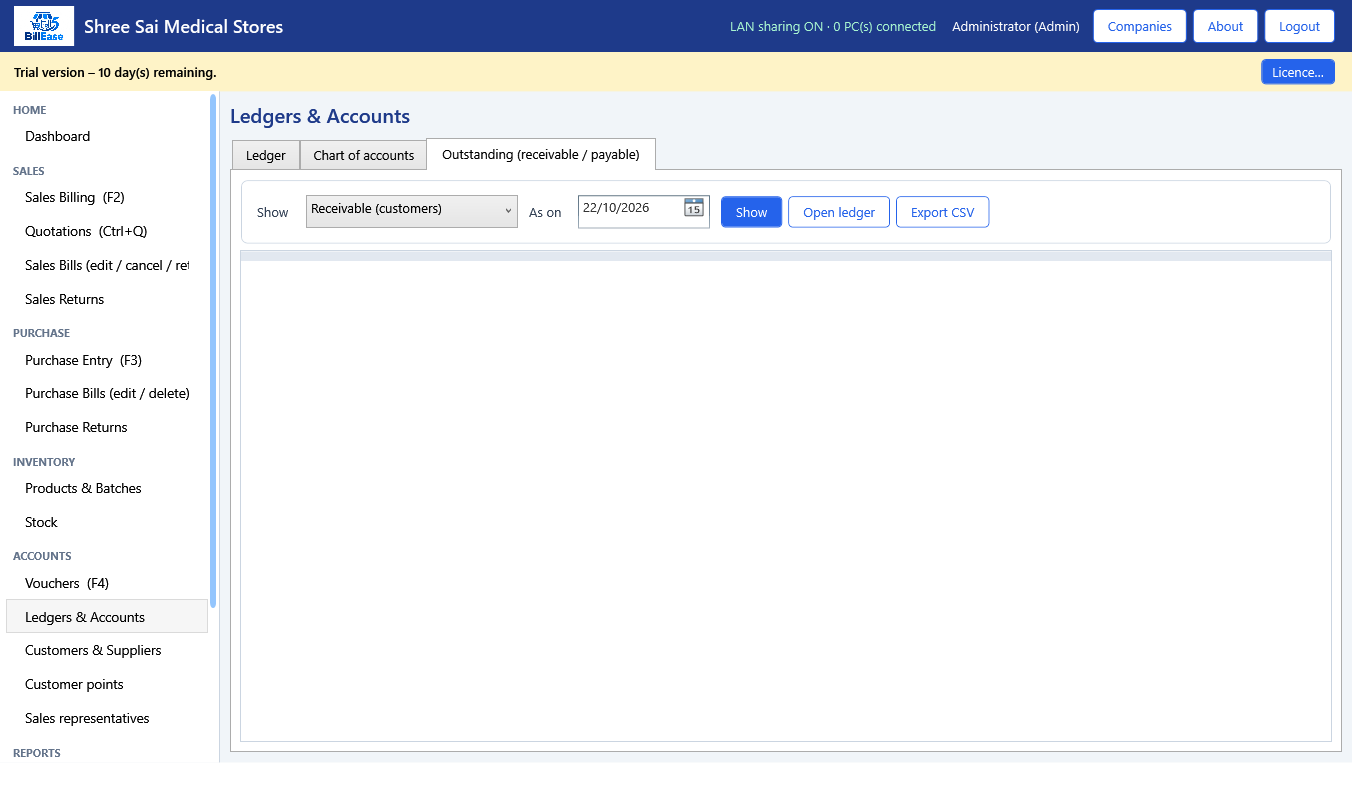
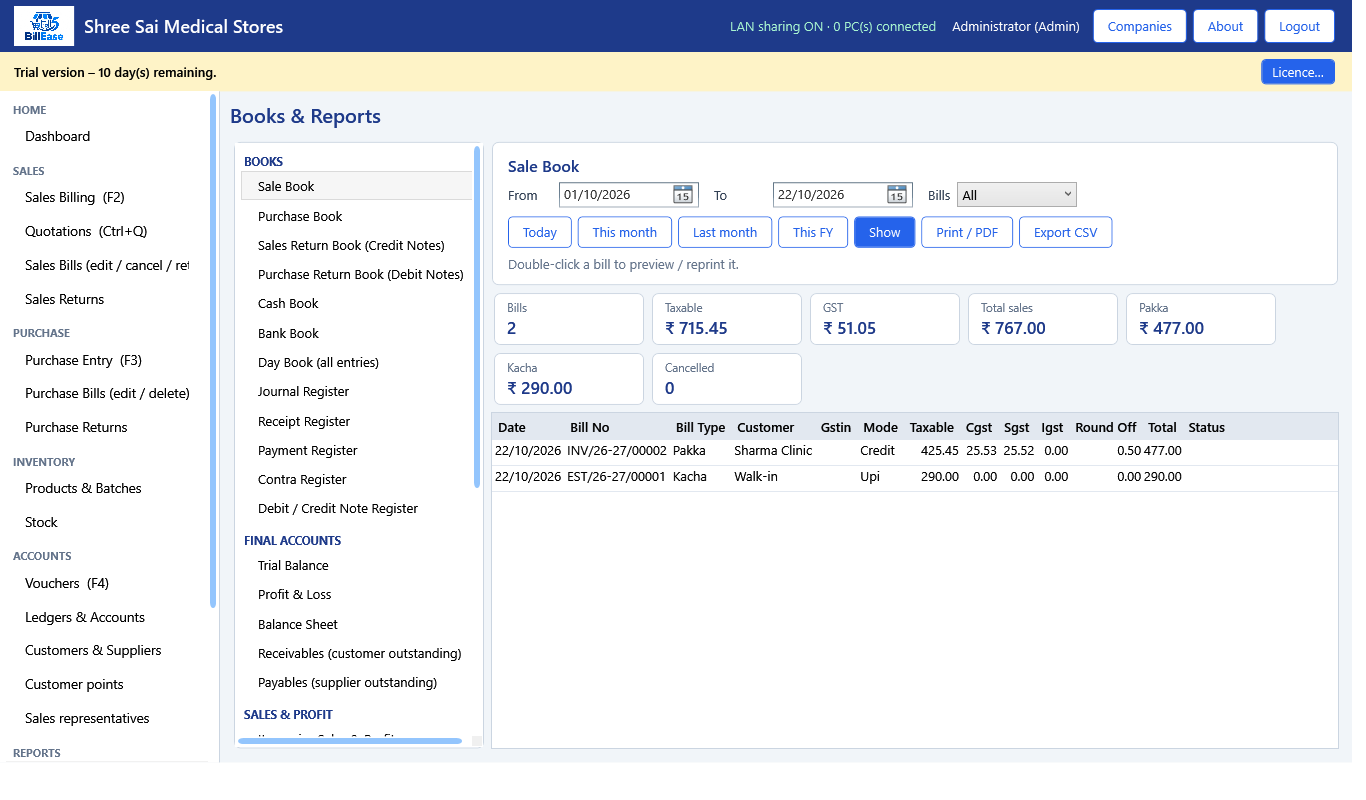
Ledgers and accounts, Ctrl+1, are the books of the company that is open. Pick an account and the dates. You see opening, each line, and closing. The trial balance of that company must balance. If it does not, run Verify and repair before you trust the figures.
Profit and loss and the balance sheet are under Books and Reports, F11, in Final accounts. They are for this company. There is no combined profit and loss for every branch. The head office can open a combined trial balance, which adds accounts that share a name. That combined trial balance is not a filed return, and a branch whose database cannot be opened is left out.
Item-wise sales shows quantity, taxable value, cost and margin. Cost is the batch cost at the time of the sale. Department sales groups the same figures by the item category. Receivables and payables age the outstanding. They do not replace the party ledger when you need every line.
GST summary, HSN summary, GSTR-1 and GSTR-3B, opened with F12, include pakka bills only. The program prepares those tables on screen and for export. It does not log in to the GST portal, it does not file the return, and it does not create an e-invoice or an e-way bill. The schedule H1 register lists H1, X and narcotic lines from sales bills.
Steps
108. Open Ledgers & Accounts (Ctrl+1).Ledgers & Accounts, captured from BillEase.
109. Pick an account and the dates. The ledger shows opening, each line, and closing.
110. The trial balance must balance. If it does not, run Verify and repair under Settings before you rely on the figures.
111. Profit and loss and the balance sheet are on Books & Reports (F11), under Final accounts.Books & Reports, captured from BillEase.
112. Item-wise sales shows quantity, taxable value, cost and margin. Cost is the cost on the batch at the time of the sale.
113. Department sales groups that same figure by the item's category.
114. Receivables and payables age the outstanding. They are not a substitute for the party ledger if you need every line.
115. GST summary, HSN summary, GSTR-1 and GSTR-3B (F12) include pakka bills only.GST Returns (GSTR-1 / 3B), captured from BillEase.
116. The program prepares those GST tables. It does not upload them to the GST portal, and it does not create an e-invoice or an e-way bill.
117. The schedule H1 register lists H1, X and narcotic lines from sales bills.
BillEase guide · Chapter 13 of 20
Chapter 14
Bill layout and the printer
The bill designer changes what is printed. It does not change the saved totals.
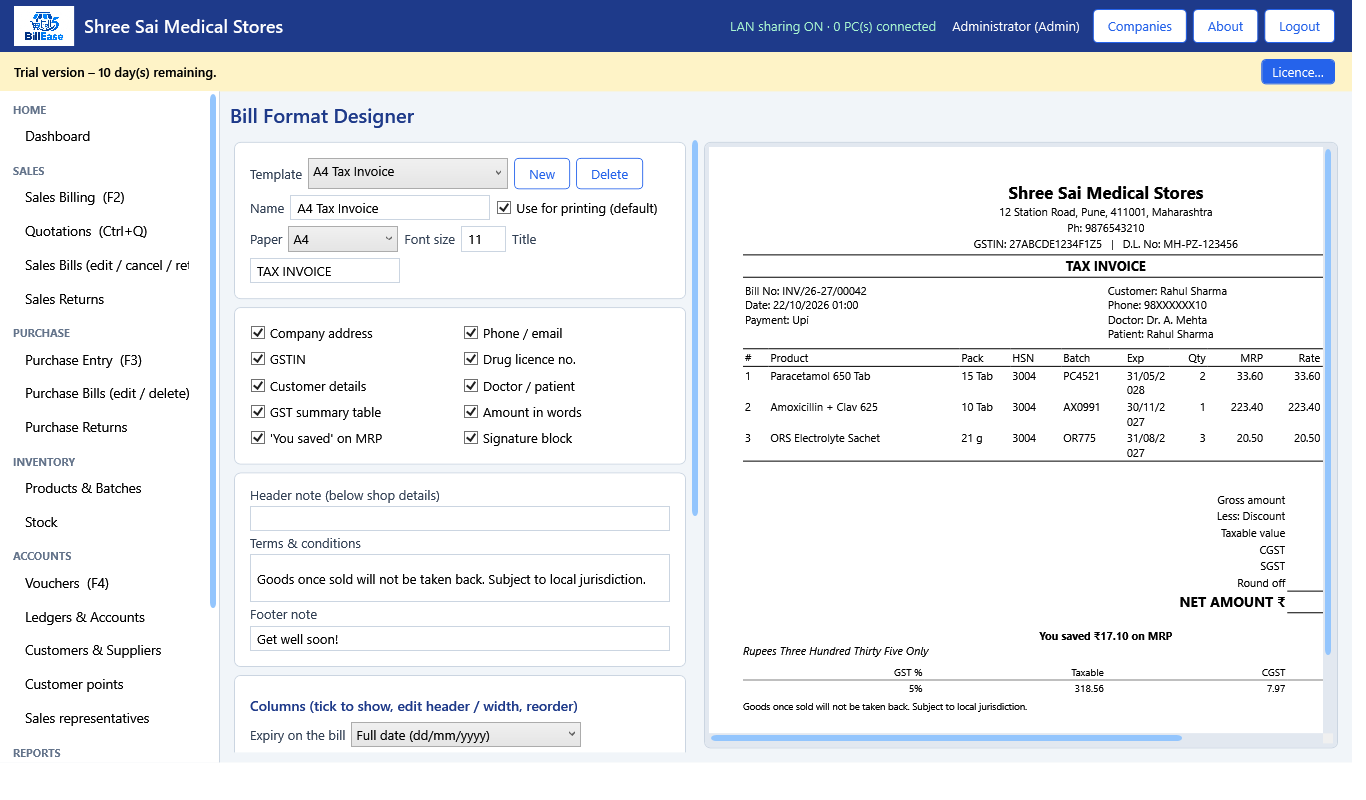
The bill designer, Ctrl+4, changes what is printed. It does not change the saved totals. Only an administrator opens it. Four templates are already there: A4 tax invoice, A5 half page, thermal 80 mm and thermal 58 mm.
You can change the title, the font size and the paper. Tick the blocks you want: address, phone, GSTIN, drug licence, customer, doctor and patient, GST summary, amount in words, savings against MRP, and a signature. On the column grid, tick Show, edit the heading and the width, and move a column up or down. Refresh preview draws a sample bill. That sample is not one of your saved bills.
Expiry can print as a full date or as month and year. The expiry column itself has to be ticked or nothing is printed. Save the template and tick it as the one used for printing if it should be the default.
In Settings, name the printer for bills, thermal, barcodes and reports. An empty name means Windows picks the printer. You can send sale bills to the thermal printer and the thermal template. Copies can be 1 to 5. You can show the printer dialog, or send the job straight to the named printer. If that printer is missing, the dialog still opens.
Steps
118. Open Bill Format Designer (Ctrl+4). An administrator login is required.Bill Format Designer, captured from BillEase.
119. Four templates are already there: A4 tax invoice, A5 half page, thermal 80 mm and thermal 58 mm.
120. Pick a template. Change the title, the font size and the paper.
121. Tick the blocks you want: address, phone, GSTIN, drug licence, customer, doctor and patient, GST summary, amount in words, savings against MRP, signature.
122. On the column grid, tick Show, edit the heading and the width, and use Move up or Move down. Click Refresh preview to see a sample bill. This sample is not one of your saved bills.
123. Set the expiry style to the full date or to month and year. The expiry column itself has to be ticked or nothing is printed.
124. Save the template. Tick “use for printing” if this one should be the default.
125. In Settings, choose the printer name for bills, thermal, barcodes and reports. If the name is empty, Windows picks the printer.
126. Switch on “sale bills use the thermal printer” if the counter should use the thermal template. Copies can be 1 to 5.
127. Show the printer dialog, or turn it off to send the job straight to the named printer. If that printer is missing, the dialog still opens.
BillEase guide · Chapter 14 of 20
Chapter 15
LAN: a second PC in the shop
The main PC holds the database. Other PCs are clients. They do not keep a second copy of the bills.
The main PC holds the database. Other PCs are clients. They do not keep a second copy of the bills. On the main PC, turn LAN sharing on in Settings. The port must be between 1024 and 65535. The default is 47800. Copy the access key. A client cannot connect without it. Regenerating the key signs every client out.
Leave BillEase running on the main PC. Sharing stops when the program exits. On the other PC, install the same build. At the connection screen, Search finds this server only on the shop network. Type the access key and sign in. If more than one company is hosted, choose the company.
The client uses the same screens. Purchase, backup and company registration stay on the main PC. The program refuses those on a client. The licence user count is how many client sessions can be signed in. The trial allows 3. A paid licence allows the number printed on the file. The Windows firewall on the main PC must allow the port. The program does not add that firewall rule for you.
Steps
128. On the main PC, open Settings and turn LAN sharing on. The port has to be between 1024 and 65535. The default is 47800.Settings, captured from BillEase.
129. Copy the LAN access key. A client cannot connect without it. Regenerating the key signs every client out. They must type the new key.
130. Save, and leave BillEase running on the main PC. Sharing stops when the program exits.
131. On the other PC, install the same build. At the connection screen, search. Search works only on the shop network.
132. Pick this server, type the access key, and sign in. Choose the company if more than one is hosted.
133. The client uses the same screens. Purchase, backup and company registration stay on the main PC. The program refuses those on a client.
134. The licence user count is how many client sessions can be signed in. The trial allows 3. A paid licence allows the number printed on it.
135. The Windows firewall on the main PC must allow the port. The program does not add that rule for you.
BillEase guide · Chapter 15 of 20
Chapter 16
WAN: from outside the shop
This is the same client connection. The difference is the path across the internet. The price for a WAN licence is on the catalogue page. The program does not switch WAN off by itself.
A PC outside the shop uses the same client connection. The difference is the path across the internet. On the router at the shop, forward the BillEase port to the main PC’s local address. The program does not open that port on the router.
On the outside PC, do not use Search. Type the public address and the port, then the access key. Sign in and pick the company. If the shop’s public address changes, the outside PC has to be told the new address. The program does not track that.
A WAN licence is the commercial licence for that deployment. It is issued with the edition name WAN and the user count you bought. What the program enforces is that user count, the machine id of the main PC, and the expiry date. It does not contain a separate screen that appears only after you pay the WAN price. Backup of the database still happens on the main PC only, and only after a licence is loaded.
Steps
136. On the router at the shop, forward the BillEase port to the main PC’s local address. The program does not open that port on the router.
137. On the outside PC, do not use Search. Type the public address and the port, then the access key.
138. Sign in and pick the company, the same way as a PC in the shop.
139. If the shop’s public address changes, the outside PC must be told the new address. The program does not track that.
140. A WAN licence is issued with the edition name WAN and the user count you bought. The thing the program enforces is that user count, the machine id of the main PC, and the expiry date.
141. Backup of the database still happens on the main PC only, and only after a licence is loaded.
BillEase guide · Chapter 16 of 20
Chapter 17
Backup, restore, and companies
Backup copies the encrypted database. It is not a GST file and not a spreadsheet of bills.
Backup copies the encrypted database. It is not a spreadsheet of bills and it is not a GST file. After a licence is loaded, open Settings, Backup. Choose a file and a password of at least 6 characters. You need that password to restore. The program cannot recover a forgotten backup password.
Backup every company writes one file per company, plus the company list, into a folder you choose. Restore into this company replaces the open company and restarts the program. Restore into another company does not touch the one that is open. During the trial these buttons stop with a message. Automatic backup on exit also does nothing during the trial.
Companies, for an administrator on the main PC, lists every firm on this computer. Each firm has its own encrypted database. One firm cannot read another firm’s bills. You can add a company or a branch, reuse the administrator password or create a new login, and remove a company from the list without deleting its database. A removed company can be brought back.
Mark one company as the head office of a firm. The head office can open a read-only overview of the branches: sales, purchases, cash, bank, receivables, payables, stock value, low stock and near expiry. Stock transfer sends quantity and cost to another branch. The other branch accepts or cancels. It is not a tax invoice. After it is accepted it cannot be edited. Send the goods back with another transfer. There is no central purchase order for the branches.
Steps
142. After a licence is loaded, open Settings, Backup. Choose a file and a password of at least 6 characters. You need that password to restore. The program cannot recover a forgotten backup password.
143. Backup every company writes one file per company plus the company list, into a folder you choose.
144. Restore into this company replaces the open company and restarts the program. Restore into another company does not touch the one that is open.
145. During the trial these buttons stop with a message. Automatic backup on exit also does nothing during the trial.
146. Companies (administrator, main PC) lists every firm on this computer. Each firm has its own database. One firm cannot read another firm’s bills.
147. Add a company or a branch. You can reuse the administrator password or create a new login. Removing a company from the list does not delete its database. It can be brought back.
148. Mark one company as the head office of a firm. The head office can open a read-only overview of the branches: sales, purchases, cash, bank, receivables, payables, stock value, low stock and near expiry.
149. The combined trial balance adds accounts that share a name. It is not a filed return. A branch whose database cannot be opened is left out and named on the report.
150. There is no combined profit and loss. There is no central purchase order for the branches.
151. Stock transfer sends quantity and cost to another branch. The other branch accepts or cancels. It is not a tax invoice. After it is accepted it cannot be edited. Send the goods back with another transfer.
BillEase guide · Chapter 17 of 20
Chapter 18
Restaurant
These screens exist only when the restaurant module is on.
These screens exist only when the restaurant module is on. Open Tables and Orders. Add tables with a name, a section and a number of seats. On the board, green is free and amber has an open order.
Click a table, set covers, and add dishes. A note such as “less oil” is stored on that line. Send to kitchen prints a kitchen ticket with a ticket number. Dishes already sent are not sent again. The kitchen display lists tickets and lets you mark a dish preparing, ready or served. It re-reads the database every 15 seconds. It does not push a live update.
You can move the order to another free table. Cancel a dish with a reason, or cancel the whole order with a reason if nothing should be billed. An order that is already billed cannot be cancelled from this screen. Settle takes payment and saves a normal sales bill, so GST and the books stay the same as a counter sale.
Settle to a room only if a guest is checked in. That does not make a bill yet. It posts the dishes onto the guest folio. A dish is a service, so its ingredients are not taken out of stock. A packaged item on the same order, such as bottled water, does come out of stock.
Steps
152. Open Tables & Orders.
153. Add tables with a name, a section and a number of seats. Green on the board is free. Amber has an open order.
154. Click a table. Set covers and, if you want, a guest name. Add dishes. A note such as “less oil” is stored on that line.
155. Send to kitchen. That prints a kitchen ticket with a ticket number. Dishes already sent are not sent again.
156. Open Kitchen Display on the pass. It lists tickets and lets you mark a dish preparing, ready or served. It re-reads the database every 15 seconds. It does not push a live update.
157. Move the order to another free table if the guests shift.
158. Cancel a dish with a reason. Cancel the whole order with a reason if nothing should be billed. An order that is already billed cannot be cancelled here.
159. Settle takes payment and saves a normal sales bill, so GST and the books stay the same as a counter sale. Settle to a room only if a guest is checked in. That does not make a bill yet. It posts the dishes onto the guest folio.
160. A dish is a service. Its ingredients are not taken out of stock. A packaged item on the same order, such as bottled water, does come out of stock.
BillEase guide · Chapter 18 of 20
Chapter 19
Hotel
Rooms and the folio. The restaurant screens are also on, for room service.
Rooms and the folio are on when the hotel module is on. The restaurant screens are on as well, for room service. Add a room with a number, floor, category, nightly tariff and how many guests it sleeps. Housekeeping status is vacant, cleaning or maintenance. A room with a guest checked in cannot be set to another housekeeping state until they leave.
A booking names the room, the guest, the phone, the dates, the adults and the tariff you agreed. That tariff can differ from the room’s usual tariff. The same room cannot be booked twice for overlapping nights. Check the guest in. An advance posts to Guest Advances, not to sales, until check-out.
Add a folio charge for food, laundry, a service or something else. Type the description, quantity, rate and GST rate. Room-rent GST follows the nightly rate: up to ₹1,000 a night is nil, up to ₹7,500 is 5%, and above that is 18%. When the tariff already includes GST, the slab is worked out on the amount before tax. You can still type a different GST rate on a charge.
Check-out turns the folio into one pakka sales bill. Advances reduce what the guest still pays. The room goes to cleaning. If you later cancel that bill from Sales Bills, the journal that cleared the advance is not reversed for you. Reverse it with a journal voucher. Goods charged from the restaurant onto the room stay in their own department on the department report. Dishes stay under Food and beverage.
Steps
161. Open Rooms & Bookings.
162. Add a room: number, floor, category, nightly tariff and how many guests it sleeps.
163. Housekeeping status is vacant, cleaning or maintenance. A room with a guest checked in cannot be set to another housekeeping state until they leave.
164. Create a booking: room, guest, phone, dates, adults, and the tariff you agreed. The tariff can differ from the room’s usual tariff.
165. The same room cannot be booked twice for overlapping nights.
166. Check the guest in. Take an advance if they pay now. An advance posts to Guest Advances, not to sales, until check-out.
167. Add a folio charge: food, laundry, a service or other. Type the description, quantity, rate and GST rate.
168. Room rent GST follows the nightly rate. Up to ₹1,000 a night is nil, up to ₹7,500 is 5%, above that is 18%, using the amount before tax when the tariff already includes GST. You can still type a different GST rate on a charge.
169. Check out. The folio becomes one pakka sales bill. Advances reduce what the guest still pays. The room goes to cleaning.
170. If you later cancel that check-out bill from Sales Bills, the journal that cleared the advance is not reversed for you. Reverse it with a journal voucher.
171. Goods charged from the restaurant onto the room stay in their own department on the department report. Dishes stay under Food and beverage.
BillEase guide · Chapter 19 of 20
Chapter 20
A normal day, in order
One sequence that uses the screens above. Skip a step that your business type does not have.
Open the program and read the firm name on the top bar. That is the company the next bill will belong to. If you keep more than one company on the PC, switch before you start.
The dashboard shows today’s sales, low stock and near expiry. Receive the morning purchase, or confirm yesterday’s purchase is already saved. Take sales on F2. Hold a bill if a second customer is waiting. For a table, settle from the restaurant screen rather than typing the dishes again on F2.
Enter the day’s expenses as payment vouchers, and enter customer receipts against credit bills. Reprint a bill from Sales Bills if someone asks. On the main PC, after a licence is loaded, confirm the backup folder if you use automatic backup on exit. Sign out with Ctrl+L when you leave the counter. The main PC has to stay running if other PCs are connected.
Steps
172. Open the program and confirm the firm name on the top bar is the company you mean to bill in.
173. Glance at the dashboard: today’s sales, low stock, near expiry.Dashboard, captured from BillEase.
174. Receive the morning purchase, or confirm yesterday’s purchase is saved.
175. Take sales on F2. Use hold if a second customer is waiting.
176. For a table, settle from the restaurant screen rather than typing the dishes again on F2.
177. Enter the day’s expenses as payment vouchers, and customer receipts against credit bills.
178. Reprint a bill from Sales Bills if someone asks.
179. On the main PC, after a licence is loaded, confirm the backup folder if you use automatic backup on exit.
180. Sign out with Ctrl+L when you leave the counter. The main PC has to stay signed in and running if other PCs are connected.


.png)
.png)
.png)
.png)
.png)
.png)